Day and Night Wallpaper Switching Matching Your Screen to Ambient Light
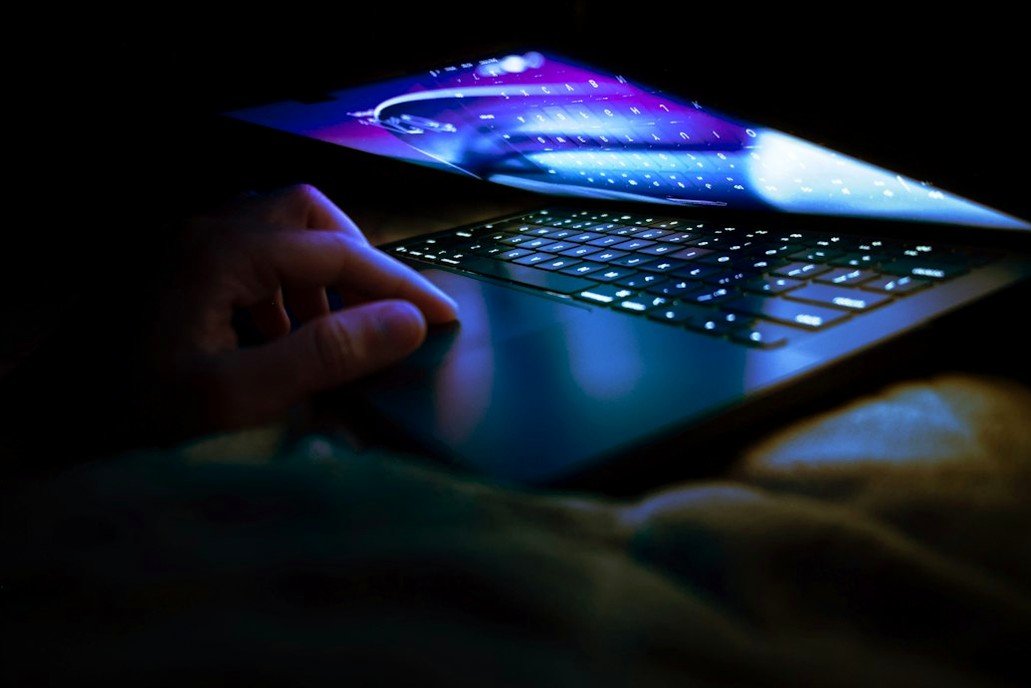
Day and Night Wallpaper Switching: Matching Your Screen to Ambient Light
Day and night wallpaper switching keeps a desktop more comfortable as the lighting in a room changes. A brighter, clearer image suits daylight, while a darker, lower-contrast image works better after sunset. Your operating system or wallpaper application can change between them on a schedule.
Wallpapers4screen.com provides free desktop images in high-quality formats, including 3840x2400 files. The site does not ship physical cargo, so there are no freight routes, customs hubs, or destination warehouses to manage. The process is digital: choose an image, download it, save it locally, and assign it to the appropriate time-based wallpaper setting.
How the digital route works by region
The request starts in your browser and passes through your local internet provider to the website. The network path and transit hubs may vary by region, connection, and time of day. For that reason, the site does not provide a guaranteed download duration or a fixed regional delivery route.
A large wallpaper may take longer to download on a mobile connection or a congested office network. If the download fails, request the file again rather than treating the problem as missing cargo. Open the completed image before changing your desktop settings. An incomplete file can create a blurred or broken background.
For a dependable home or office setup, download both versions while the connection is stable. Store the daytime and nighttime files in one local folder, using clear names such as day-wallpaper.jpg and night-wallpaper.jpg. Local storage means the computer will not need to retrieve the images each time the schedule changes.
Choosing images for daylight and evening use
Bright rooms usually suit images with clear lines, open landscapes, architecture, or restrained abstract patterns. These designs remain readable beside desktop icons when sunlight enters through a window and the screen has to compete with a bright background.
Evening wallpaper generally works better with darker tones, fewer sharp highlights, and less visual clutter. A night image does not change the display’s actual brightness, but it reduces the amount of bright content around windows and icons. Pair it with your operating system’s night mode or with a manually reduced brightness level.
The site groups images by category, making it easier to search for a particular visual style instead of scrolling through unrelated files. Its desktop collection includes Abstract, Cities, Computers, Interior, Landscapes, Minimalism, Nature, and Space. Images with similar compositions create a more consistent change between the two settings.
Resolution and receiving the file
A 3840x2400 wallpaper suits displays that support the same resolution or a smaller one. The operating system may still crop or scale the image according to the screen’s shape. Check the preview and your monitor settings before downloading several large files, particularly when storage or bandwidth is limited.
At the destination, receiving the file means confirming that the browser has finished downloading it and that the image opens correctly. Check the download folder, file extension, and visible dimensions. If the desktop crops the picture, try a fit mode such as Fill, Fit, or Center. Compare each result with the screen’s aspect ratio.
Laptop users should test both images on battery power and while connected to power. Some devices change display brightness or night-light settings automatically, which can make the wallpaper appear darker than expected. A short test in the late afternoon shows whether the selected images remain comfortable as the ambient light decreases.
Setting up automatic day and night switching
Most desktop systems can change backgrounds through built-in personalization settings or a wallpaper application. Assign the brighter file to daytime and the darker file to evening, then choose times that match the lighting in your room instead of relying on a generic schedule.
- Download one daylight image and one evening image from Wallpapers4screen.com.
- Open each file locally and confirm that it is complete and sharp.
- Place both files in a permanent wallpaper folder.
- Set the daytime image for the hours when sunlight reaches the workspace.
- Set the evening image before the room becomes dark.
- Adjust display brightness and night mode separately from the wallpaper schedule.
The site has simple navigation and multiple language options, including English, Français, Deutsch, Español, Русский, and others. Users in different regions can find the download page without working through an unfamiliar interface. Once the files are stored locally, scheduled switching no longer depends on the connection.
What to check before downloading
Review the image resolution first, especially when using a high-density monitor or a multi-screen setup. A 3840x2400 file may look excellent on one display but require cropping on another. Test it on the screen where it will remain active rather than judging it only on a phone.
Keep the two files visually balanced. Pairing a very bright daytime image with an almost black evening image can make the scheduled change feel abrupt. Similar colors with different brightness levels usually create a smoother transition and reduce the need for repeated manual adjustments.
For a practical starting point, browse Day and Night Wallpaper Switching: Matching Your Screen to Ambient Light, download two matching 3840x2400 images, and test the schedule during your actual morning and evening work hours. Which pair will you install first on your main screen?
- Reference: https://wallpapers4screen.com/
Write a comment