How to archive your own personal slice of Nostr
Introduction
Wouldn’t it be cool to have a personal relay that stores not only your posts, but your conversations too - all the threads you participate in, all the replies from people in your web of trust - and let you upload your media to a server you control via Blossom? All neatly integrated into whatever Nostr client you already use?
If you think so, read on…
So I’ve recently gotten back into Nostr after somewhat of a hiatus due to various life events. It’s personal shit you don’t care about, but the important point is, after coming back a lot of cool new functionality has been added to Nostr. So much, in fact, that I could probably spend all day going through it and still miss at least half. I could then spend another week reading through all the controversies surrounding many of the decisions made to implement them (I kid, I kid).
But something I found especially cool was Blossom, and particularly the idea of self-hosting it. Back in the early days of Nostr, I used a super hacky implementation of a self-hosted private file upload site that would just dump files into a bucket, after which I’d manually have to paste the link into my note. Far from ideal. So the ability to just upload directly to your own server via your Nostr client, authenticated by your npub, even built right into your personal relay, is brilliant.
Yeah I already know about Blossom, what’s your point bro?
Well because then I thought: wouldn’t it be cool if I could run a relay that not only gave me sovereign control over the media I attach, and hosted my own notes, but also hosted the conversations I had?
In other words, it could archive my own little corner of Nostr. All the replies to my notes, the interactions, the zaps. And, of course, the interactions and zaps I put on other people’s posts. There on my own relay for my client to grab, so it doesn’t have to crawl through 1,000 other relays just to put it all together.
Unfortunately, a standard private relay only stores the notes signed by the npubs you explicitly whitelist. And unless you can convince everyone who follows you to add your relay to their clients, odds are, only your notes and events will ever get stored there.
Imagine my delight, then, when I came across Chronicle. This project was created by dtonon, the same man behind njump, Coracle, and a whole host of other great Nostr projects used widely.
But enough glazing. What Chronicle does is specifically what I was looking for. It’s a personal relay that doesn’t just back up your notes, but includes your web of trust, pulls in notes that are replies to yours, pulls in other event types from your notes (reactions, zaps, etc) and puts them all in your own personal relay. It also handles DMs but only within your WoT for spam filtering (although you can set it to also allow PoW DMs to your chosen threshold) and, like I mentioned, it has a built in Blossom server.
It’s also written in Go, so it’s super fast and efficient.
But it is not the most well documented for people who aren’t already at least moderately experienced in self-hosting. Nor is it included in platforms like StartOS or Umbrel.
So I thought I’d give a simple straightforward guide on how to set it up and configure it on a VPS.
How to self-host your own instance
Firstly I am going to assume you already know the basics of how to spin up a VPS and configure it securely. I’d love to go into full detail about how to do all of that, but then this would unfortunately be 10x as long.
The most important thing is: make a separate account that isn’t root, configure your firewall correctly, update regularly (unattended-upgrades comes with Ubuntu and other Debian based distros and is usually preconfigured). Make sure SSH is set up to only allow logins from your SSH key, not passwords. And absolutely make sure root is not allowed to sign in via SSH.
Depending on your VPS provider, a lot of this is often done automatically, especially the SSH config. I will go over checking your firewall as we get to the end just to be safe!
So go create a VPS or use one you already have, and choose a domain you want to use.
I recommend making a separate account for each application you deploy as a basic OPSEC procedure. If you’re not sure how to do this, just make sure you aren’t using root.
If you are using root, then:
adduser chronicle
usermod -aG sudo,docker chronicle
su - chronicle
You’re welcome.
Prerequisites
Personally I use Caddy for my server/reverse proxy because it is very good and very quick and easy to configure. If you have a preference for something else like Nginx, feel free to use it, but this guide will assume you are using Caddy.
So first thing we’re going to do is make sure Docker is installed correctly on our VPS. You can run it without Docker, but Docker is more secure and it’s easier to manage.
Make sure you install Docker from the official repos. You can follow the instructions here.
Do the same with Caddy by following the instructions here.
Done? Good. Now to the fun bit.
Installing Chronicle
In the new user you made on your VPS, cd to your home and make a new directory:
mkdir ~/chronicle
cd ~/chronicle
Clone the git repo into that directory:
git clone https://github.com/dtonon/chronicle.git .
Build it from the source into a Docker image:
docker build -t chronicle:latest .
Create a docker-compose.yml file. This will contain your config.
nano docker-compose.yml
Paste this into the new file you made:
services:
  chronicle:
    build:
      context: .
      dockerfile: Dockerfile
    container_name: chronicle
    restart: unless-stopped

    # Bind to localhost only. Caddy will expose it publicly over HTTPS/WSS.
    ports:
      - "127.0.0.1:3334:3334"

    volumes:
      - ./db:/app/db
      - ./assets:/app/assets

    environment:
      # Your pubkey, in hex format - REQUIRED
      OWNER_PUBKEY: "YOUR_HEX_NOSTR_PUBLIC_KEY"

      RELAY_NAME: "Chronicle Relay"
      RELAY_DESCRIPTION: "Personal Nostr relay powered by Chronicle"
      RELAY_URL: "wss://relay.example.com"
      RELAY_ICON: "https://relay.example.com/web/icon.png"
      RELAY_CONTACT: "https://relay.example.com"

      RELAY_PORT: "3334"
      DB_PATH: "/app/db/"
      BLOSSOM_ASSETS_PATH: "/app/assets/"
      BLOSSOM_PUBLIC_URL: "https://relay.example.com"

      REFRESH_INTERVAL: "24"
      MIN_FOLLOWERS: "3"

      # Empty disables the whitelist
      # Zero (0) disables WoT - not recommended!
      POW_WHITELIST: ""
      POW_DM_WHITELIST: "20"

      BLOSSOM_BACKUP_MEDIA: "FALSE"
      FETCH_ALL_INTERACTIONS: "TRUE"
      SKIP_DELETIONS: "FALSE"

      NEGENTROPY: "TRUE"
      NEGENTROPY_AUTH: "TRUE"
Configuring this thing
The most important part is your pubkey. Since this is designed purely to be a personal relay, you need to put your pubkey in so the relay knows who’s boss!
It cannot be formatted like npub... it must be formatted in hex. You can quickly convert it using this tool here. Do NOT use your secret key! Only your PUBLIC KEY!
The other important part is your relay URL and Blossom URL. Ensure these match the domain you will use for the relay:
RELAY_URL: "wss://relay.example.com"
BLOSSOM_PUBLIC_URL: "https://relay.example.com"
You probably could set these as different subdomains, but I have not tried it and it doesn’t appear to be the intended config. If you know what you’re doing and you’re feeling adventurous, try it and tell me if it works! But for this tutorial we’ll just leave it as the same subdomain for the relay and Blossom.
Just make sure you change example.com to your actual domain, and ensure the relay URL starts with wss:// and the Blossom URL starts with https://.
The rest of it, you can configure to your liking or leave it at the default if you wish.
The above is based on the config I used, which is changed from the default in two ways:
BLOSSOM_BACKUP_MEDIA: "FALSE"
As this does not (yet) connect to an S3 style backend for storage, I disabled the feature that would backup the media of my WoT.
Note: with this disabled, you can still use it as your Blossom server, it just won’t back up media from other peoples’ replies etc. It will only host what you choose to upload to it for your own notes.
I also changed this:
POW_DM_WHITELIST: "20"
That’s a bit of an experiment on my part. I’m curious about messing with PoW events and seeing how they work. The idea behind this feature is a spammer wouldn’t waste CPU cycles to spam a big list of different people on Nostr if PoW is required for all of them, so the PoW requirement creates a barrier to entry.
This only applies to people outside your web of trust, so anyone you follow for example can still DM you without the PoW requirement.
If you don’t care about any of that, just set it to blank. Do NOT set it to zero as this disables the spam filtering from the WoT as well. Just set it like this:
POW_DM_WHITELIST: ""
Fire it up
Once you’ve configured everything, hit ctrl + O and hit enter to save your changes in nano, then run this command:
docker compose up -d --build
This will build the containers with your config and get it all running.
Once it is done, you can run this to view the logs:
docker compose logs -f chronicle
They’re not very busy, so you’ll probably see something like this.
Hit ctrl + C to exit out of the logs, and now we just need the final step…
Set up Caddy
Open up your Caddyfile:
sudo nano /etc/caddy/Caddyfile
If you have only just installed Caddy, you might have a :80 entry in there. If you do, delete all of it.
Now paste this in:
relay.example.com {
        encode zstd gzip

        reverse_proxy 127.0.0.1:3334

        request_body {
                max_size 10MB
        }

        header {
                X-Content-Type-Options "nosniff"
                Referrer-Policy "no-referrer"
                X-Robots-Tag "noindex, nofollow"
                -Server
                -Via
                -X-Powered-By
        }
}
Now just change the domain right at the top to the actual subdomain you’re using for the relay. You can also change the max_size if you want to upload larger files, this is entirely up to you.
The rest are just general basic settings and secure HTTP headers I add to everything. These are very basic but they don’t hurt.
Once you’ve made the changes (definitely change the domain!) save it as you did with the previous config then reload Caddy:
sudo systemctl reload caddy
Check your firewall!
The next step will hook everything up to the domain so it’s accessible to the internet. So before we do that, make absolutely sure your firewall is set up correctly.
Run this on your VPS:
sudo ufw status
It should show something like this:
Status: active

To                         Action      From
--                         ------      ----
22/tcp                     ALLOW       Anywhere
80/tcp                     ALLOW       Anywhere
443/tcp                    ALLOW       Anywhere
22/tcp (v6)                ALLOW       Anywhere (v6)
80/tcp (v6)                ALLOW       Anywhere (v6)
443/tcp (v6)               ALLOW       Anywhere (v6)
Make sure you don’t have any extra ports open, e.g. you don’t need to open 3334 because we’re proxying it through Caddy.
Hook up the DNS records
Now go to wherever you manage your DNS records (usually your domain registrar, but if you use Cloudflare it will be there) and add the subdomain, match the IP address with your VPS, ideally add both an A and AAAA record: one is for the IPv4 and one is for IPv6.
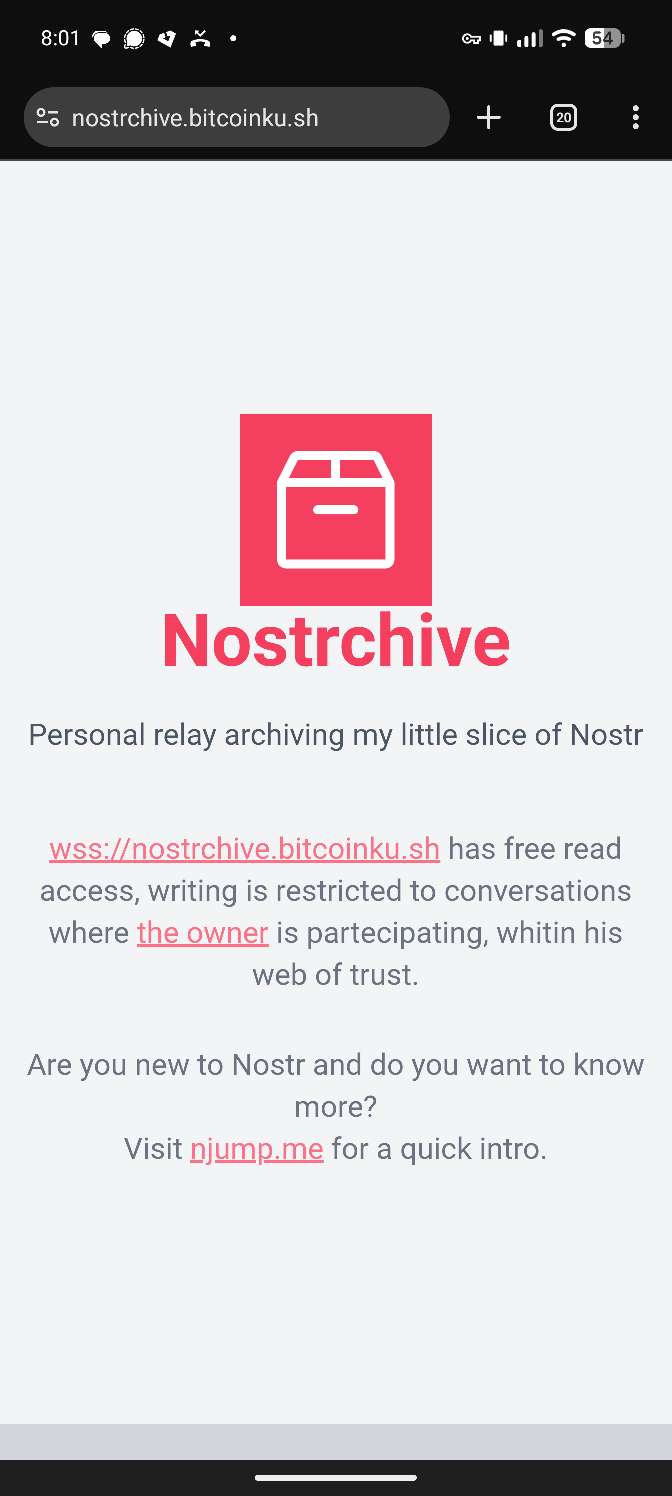
Assuming you’ve done everything right, your relay should now be working! Try going to it in your browser, you should see something like this:
Add it to your client
Now for the really fun bit! Open up your Nostr client and add your new subdomain as a relay. Then you want to add it as a media server so the Blossom uploads work.
These things work differently in different clients, but in Amethyst you open the sidebar, scroll down until you see “Relays”, then add it under the following sections. You’ll need to put it in multiple times so I recommend copying it to your clipboard!
- Public Outbox/Home Relays
- Public Inbox Relays
- DM Inbox Relays
- Trusted Relays (if you want to - this means it won’t require Tor to access, and you usually don’t need to hide your IP from something you self-host, but it’s up to you!)
After that hit save and next we’re going to open up the sidebar again, go to Settings, then Media Servers, then add a Blossom server. Paste it in again, make sure it says https:// not wss:// as that’s only for relays, not media servers.
Now hit add then save and you are done!
Give it a test!
Post something, type a test message, attach an image, and it should now list your own relay as the destination it’s uploading the picture to.
Once you’ve posted it, go back to the relays screen, find your new relay, tap it, then tap “See Relay Feed” and it should show your new note, plus any replies, plus the media you attached.
That means it works! Congratulations!
Have fun!
As I mentioned, full credit for this project belongs to dtonon, along with the contributors who help write code and send PRs.
I hope you found my tutorial on getting it up and running helpful.
If you did, feel free to zap me some sats!
xanny@cake.cash
xanny@coinos.io
(I only just switched to Cake for my LNURL, so use Coinos if Cake doesn’t work for some reason!)
Much love <3
One little note on security
The reason it is difficult to write exact instructions for securing the server without making the post long is because so much differs depending on your VPS provider, the Linux distro you’re using, the version of the Linux distro you’re using, what options you selected when configuring it, etc etc…
If you want to know what to check for your specific setup, honestly, go to ChatGPT, Claude, Grok, Gemini, or whichever your favourite LLM is, tell it all the information I just listed above, tell it everything you are using the server for, and ask it what to check and best tips on how to make sure it is secure. In my experience, AI is actually reasonably good at this.
Write a comment