How to Choose Military Transport Aircraft Parked on Sunset Runways for a Clean Desktop Setup
How to Choose Military Transport Aircraft Parked on Sunset Runways for a Clean Desktop Setup
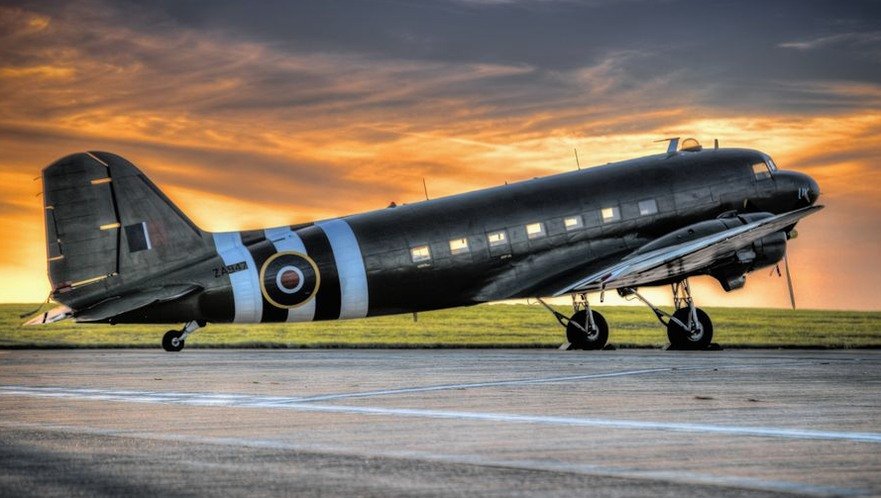
A minimalist computer workspace depends partly on the image behind its windows and icons. Military transport aircraft parked on sunset runways provide a strong subject without overwhelming the rest of the screen.
The right composition keeps the desktop orderly, supports high-resolution displays, and avoids a distracting mix of colors behind applications and open windows. It should feel substantial without competing with the work area.
Sunset scenes combine warm orange, deep purple, and soft amber tones. This lighting softens the harsher appearance of a bright display while giving the aircraft a clear shape. Heavy transport machines against a golden-hour sky also create geometric lines that contrast with the background’s smooth gradients.
A well-composed image should occupy a widescreen monitor naturally. Runway markings, aircraft fuselages, and the horizon can guide the eye across the frame. Open space near the center helps keep desktop icons readable.
Evaluating Aspect Ratios and Display Resolution
Check the native resolution of the primary monitor before downloading a high-definition wallpaper. Standard office screens require at least 1920x1200 pixels, while 4K displays benefit from 3840x2400 assets that preserve details such as fuselage rivets and exhaust components.
Mismatched dimensions can cause pixelation, visible stretching, or awkward cropping. These problems are especially noticeable around the aircraft’s nose, wings, and tail. Matching the wallpaper to the display keeps straight lines clean and prevents important structural details from being cut off.
Aircraft positioned on tarmac surfaces during twilight often provide a useful horizontal horizon line. It anchors the visual weight toward the bottom of the screen and gives the composition a stable base.
If the operating system hides taskbars automatically, the runway and sky can extend across the display without forcing a crop through the aircraft. This setup preserves more of the original scene and keeps the subject intact.
Aspect ratio matters just as much when the setup uses more than one monitor. A wide scene can continue across adjacent screens, but the aircraft should not be split at a visually important point. Check the image across the full desktop before committing to a permanent background.
Sourcing Quality Imagery and Managing File Formats
Pristine wallpaper files are easier to find in curated digital galleries than in compressed search engine thumbnails. Users looking for aviation scenes can visit How to Choose Military Transport Aircraft Parked on Sunset Runways for a Clean Desktop Setup to access full-size downloads suited to multi-monitor workstations.
Higher-grade archives preserve sunset color transitions and reduce unexpected compression artifacts. When comparing files, review both their dimensions and their format.
- Compare the image dimensions with the monitor specifications before saving files to local storage.
- Choose uncompressed or high-bitrate JPG files when possible to reduce color banding in the sunset gradients.
- Store downloaded assets in dedicated folders so future rotation and wallpaper scheduling remain easy to manage.
File quality matters particularly in large areas of smooth sky. Compression blockiness can interrupt the transition from orange to purple and make the image look uneven. A clean source file keeps the background calm, even when viewed on a large monitor.
The aircraft’s paint scheme also affects how comfortable the desktop feels during extended use. Darker gray and camouflage hulls absorb some of the scene’s brightness, while dusk illumination keeps the subject visible.
This balance helps limit visual strain during evening work sessions and maintains legibility across system menus and file manager windows. The result is a background that remains visually clear without becoming the focus of the workspace.
Final Verification Checklist Before Setting Your Wallpaper
Inspect the image at full size before applying it. Small issues that are difficult to notice in a thumbnail can become obvious once the wallpaper fills the desktop.
Check the subject’s position, the brightness behind the icons, and the amount of cropping created by the operating system. A short preview can reveal problems before the image becomes part of the daily setup.
- Confirm that the image resolution matches your display settings exactly to avoid scaling blur.
- Test desktop icon visibility against the brightest sections of the sunset gradient.
- Adjust the operating system accent colors to complement the warm amber and slate tones of the aircraft hull.
- Enable automatic background rotation if you prefer cycling through different dusk runway perspectives throughout the week.
A final preview makes it easier to identify competing colors, hidden aircraft details, or an uncomfortable horizon position. Once those elements look balanced, the wallpaper can support a clean desktop without taking attention away from the applications in use.
- Reference: https://wallpapers4screen.com/
Write a comment