Amethyst Manual - Chapter 2: Menus
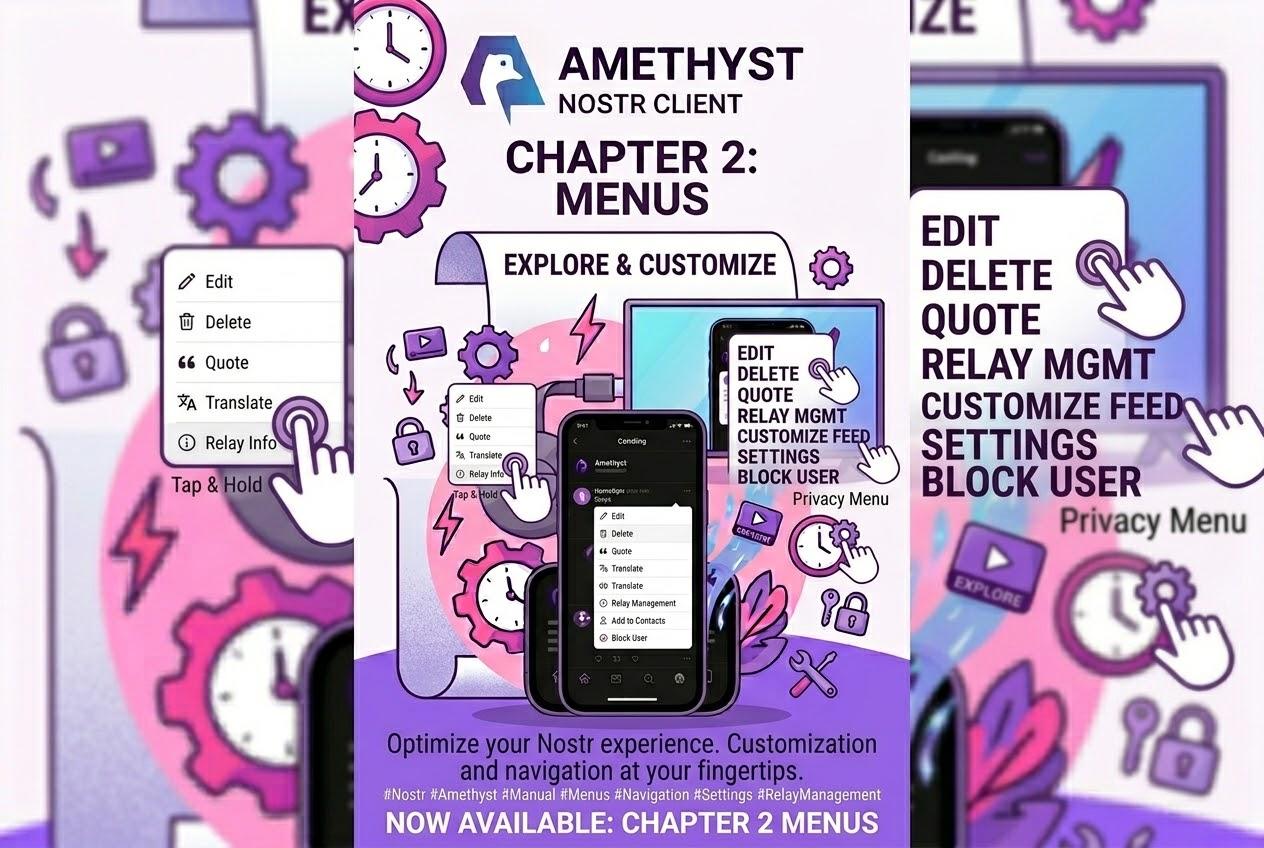
- The whole thing in one breath
- 220 things behind three dots
- Copy raw JSON
- Add Media to Gallery
- Saving to your phone
- Fork
- Timestamp it
- The two Share menus
- Copying text, IDs and JSON
- Items that only exist on certain notes
- Mute thread
- More Options in chat
- The long-press quick actions
- Long-press menus in the Messages list
- The Cordn coordinator’s ⋮
- Three more places to tap
- Three you can try right now
The whole thing in one breath
Copy raw JSON is in every note’s ⋮ and settles every question you’ve ever had about a post. Add Media to Gallery publishes to your profile, not your phone, and it lives behind a Share button, not a long-press. Save to Phone in that dialog is PDFs only — images save from the fullscreen viewer’s download arrow, video from the player’s ⋮ unless you moved it, and HLS streams don’t save. Fork is behind the repost icon, and so is un-boost. Share and Share are two different features, and a Cordn group shares as a cordn1… QR from Group info. In chat, Edit sits on the compact sheet in Buzz, Concord and Marmot, Concord’s pins are behind the push-pin badge in the channel header, and everything else is behind the words More Options — except in Cordn, whose only ⋮ is the coordinator card in Settings. And your launcher icon’s long-press has a QR scanner in it.
Fifty-seven menus. Now you know where the good ones are.
220 things behind three dots
Fifty-seven menus. Two hundred and twenty live items. At any one time you open a note’s ⋮ you see around nine of them; the rest are waiting for the right note.
The ⋮ is a menu that gets assembled for you, per note, every time you open it. Whether you wrote the note, whether it’s an article or a music track or a gift-wrapped DM, whether you follow the author, whether you’re a moderator — each of those adds or removes rows. The menu shows the items that apply to the note in front of you, and the great majority of them are one tap away from where you already are.
So let’s go through the good ones. Everything below is in the current release on both Play and F-Droid unless a line says otherwise — two lines do.
Copy raw JSON
Note ⋮ → Copy raw JSON. It pretty-prints the underlying Nostr event — kind, tags, sig, the lot — and puts it on your clipboard.
This is the single most useful item in the app for anyone who has ever wondered what a note actually contains. Someone says a post was edited, or a zap split looks off: copy the JSON, paste it, done. It is also the fastest way to teach yourself how nostr works, because you can now read the raw event for anything on your screen.
One thing to know: if the note’s event hasn’t finished loading yet, tapping the row closes the menu without copying, and there is no toast. If you paste and get whatever was on your clipboard before, that’s what happened — wait a beat and try again.
Add Media to Gallery
Tap an image in a note → the fullscreen viewer opens → tap its Share button → Media Actions → Add Media to Gallery.
That adds the picture to your public profile gallery — the picture grid other people see on your profile. It is a publishing action, not a download to your phone’s gallery.
Media Actions is one dialog with five doors, and knowing them saves a lot of tapping: the Share button in the fullscreen image viewer, the same button in the PDF viewer, the video player’s ⋮ → Share or Save, the share button on a voice track, and — the only long-press in the set — a PDF preview card in a feed, where a plain tap opens the PDF instead. Long-pressing an image in a note does not open this dialog; tap the image, then tap Share in the viewer.
One condition worth knowing: Add Media to Gallery only appears when the media came from a note, and the tap only does something when the app can resolve that note to an ordinary event. When it can’t, the dialog closes and nothing is added. The confirmation is a toast saying the media was added to your profile gallery; if you saw no toast, there is no gallery entry.
Now look at the dialog you’re in. Opened from a picture it is four rows: Copy URL to clipboard, Copy Note ID to clipboard, Add Media to Gallery, Share image…. Three of those hand something to you; the one with “Gallery” in its name is the one that publishes to the world. Saving the picture to your phone is a different control, one step back — the next section has it.
Saving to your phone
In the Media Actions dialog, Save to Phone is the PDF row. Open the dialog from a PDF and it appears, second from the top. Open it from an image or a video and the row isn’t rendered, because images and video save from somewhere else.
For images it’s one step back. The fullscreen viewer has its own download arrow in the top corner, next to the Share button that opens this dialog. Images and PDFs get the arrow; video doesn’t. So from a picture: the arrow saves it, the Share button beside it opens Media Actions. Post three, on media, has the rest.
Video saving lives on the ⋮ on the video player itself, as “Save to Phone”. And here is the detail that makes this worth a careful read — which buttons live on that ⋮ is user-configurable, in Settings → Video Player Buttons. Out of the box, Fullscreen, Mute, Quality and Cast are on the player’s top bar, while Share, Save to Phone and Picture-in-Picture are in the overflow. Move Save to Phone to the top bar and it is no longer under the ⋮ — and the same goes for Share, which is one of the five doors above. So “it’s under the video ⋮” is true for a default setup; if you’ve customised the player, check your own layout.
One more fact about video: HLS and m3u8 streams can’t be saved. The row isn’t greyed out, it simply isn’t drawn — and the test is whether the video is HLS, not whether it’s live, so an on-demand .m3u8 upload with a quality ladder has no Save row just as a live stream doesn’t. There is no single file to fetch. Everything else lands in Movies/Amethyst/.
Back in Media Actions, Share video… downloads the whole video first, and toasts that it’s doing so. While that runs the row disables itself and the dialog stays open until the download completes. On a long clip that can take a while — the app is downloading, and the share sheet appears when it’s done.
(Cast, in case you’re looking for it: Google Play build only — the F-Droid build has no Chromecast.)
Fork
Tap the repost icon under a note — not long-press, just tap — and you get a small popup with three items. Boost reposts it. Quote quotes it. And Fork opens the note in your composer as your own version of it, text and all, to change and republish under your name.
Fork appears only on plain text notes. Long-form articles, wiki entries and the rest don’t offer it yet, because the fork screens for those kinds haven’t been built — there’s a comment in the source saying exactly that. Both Quote and Fork also attach an automatic zap split back to the original author; post four, on composing, has what that does to your money.
Two things about that tap. If you have already boosted the note, the popup doesn’t open — the tap removes your boost instead, with no confirmation step: that is how you un-boost. And on a read-only (npub) login you get a “Read-only user” toast and no popup, so Quote and Fork go with it. The whole repost icon is hidden on DMs, on unsealed private messages, and in NIP-29 and Buzz group chats, so if it’s missing there, that’s why.
Timestamp it
Note ⋮ → Timestamp it submits the event to OpenTimestamps and anchors it in Bitcoin. Anyone can later prove that this exact note existed at that time, independently of any relay. It works on other people’s notes as well as your own, which makes it a genuinely useful thing to do to something you expect someone to delete.
Two things to know. It’s asynchronous — nothing visible happens for a while, and verification goes out through a configurable blockchain explorer. And once a request is pending, the row is replaced by “Timestamp: Pending Confirmations”: that row is a status indicator rather than an action, and tapping it dismisses the menu.
The two Share menus
“Share” means two different things in this app, and they are not interchangeable.
Note ⋮ → Share opens the rich bottom sheet: Share (the system sheet with a njump.to link), Share as Image, Share as Image Url, Share as QR. The sheet replaces the ⋮ dialog rather than stacking on top of it, so backing out of it doesn’t return you to the menu.
Long-press the note card → the Share tile is the plain Android share sheet and nothing else. Same word, smaller feature.
The two image options are worth separating, because their names are nearly identical and their behaviour isn’t. Share as Image renders the note to a local image file. Share as Image Url uploads that render to your media server and shares the URL. One of those leaves a permanent public artefact; the other doesn’t. And the names moved: the uploader shipped first, as plain “Share as Image”, and was renamed “…Url” one release later when the local-file version took the old name. Older advice about “Share as Image” means the one that publishes.
One more thing to know: the Share sheet contains no clipboard actions. That is explicit in the code. Copying lives in the ⋮ menu — the next section — so if you want the link on your clipboard, that’s the menu to open.
Cordn groups have a share of their own (since v1.17.0). In the room, tap the title → Share this group: a QR of the group’s cordn1… reference and a Copy link button, which reads Copied once it has. The reference names the group and the coordinator that serves it; it is public, and holding it makes nobody a member — it lets them ask, and an admin still has to let them in. There is no system share button and the link’s text isn’t displayed, so Copy link is the way out. And the main QR scanner doesn’t read cordn1… codes: the reader is Settings → Cordn → Inspect a group link, which has its own Scan button. Post ten, “Four ways to talk in private”, has the join side.
Copying text, IDs and JSON
All of these are note ⋮, and all of them are one tap:
- Copy Text — the displayed text. On an edited post it copies the newest version, not the original. Google Play build only: if the note under your thumb has been auto-translated, it opens a Copy Original / Copy Translated chooser instead of copying straight through. The F-Droid build has no translation service, so there it always copies directly.
- Copy Author ID —
nostr:npub…for the author. - Copy Note ID — the note’s nostr URI, as an nevent or naddr rather than a legacy
note1. It works on gift-wrapped private messages too. - Copy raw JSON — as above.
On a profile ⋮ there is exactly one copy row: Copy User ID. The Nostr address, the website, the lightning address, the verified identities, the payment chips — long-press any of them on the profile itself to copy it.
Items that only exist on certain notes
These appear only when the note qualifies, so it’s worth knowing they exist before you go looking:
- Highlight (text notes and articles) — opens the NIP-84 highlight composer with the source and author pre-tagged. You type or paste the passage yourself; it does not capture a selection.
- Add hashtag — publishes a NIP-32 label attaching a hashtag to a note without editing it. The label is public and signed by you, so the note turns up in that hashtag’s feed for the people who follow you — not for the hashtag’s whole audience.
- Add author to follow list — this is the people-list picker, not a follow toggle. Following someone and filing them in a list are independent.
- Pin to Profile / Unpin — your own notes only.
- Edit Post on your own note, Propose an Edit on someone else’s. Same row, different label and different meaning. Remember that an edit is a new event pointing at the old one, so other clients may keep showing the original.
- Add to playlist on a music track, and Add to my emoji list on an emoji pack — both of which take the place of the bookmark rows. A music track is not bookmarkable from the ⋮; that slot holds Add to playlist instead.
And inside an opened bookmark list, the per-item options carry one action that exists nowhere else: Move to Public / Move to Private, shifting a bookmark between the encrypted and world-readable halves of the list. From a note’s ⋮ you can add or remove.
Mute thread
Note ⋮ → Mute thread removes an entire conversation from your feeds, notifications and push. Muted threads are listed in Security Filters, so it’s reversible from one place.
It is deliberately absent on NIP-28 public chat messages. Every message in one of those channels carries the channel itself as its thread root, so muting a “thread” there would mute the whole channel — so the option is not offered. Unmute thread stays visible though, precisely so that anyone with a legacy mute from an older version can climb back out.
More Options in chat
Long-press a chat message or DM and you get a compact sheet: reactions, zap amounts, reply. Three things, and the quick ones you’ll want most often.
There’s more. Tap “More Options” and the sheet unpacks the entire note-action inventory — the same sections, the same conditions, the same code as the ⋮ menu on a feed note. Copy, bookmarks, timestamps, reports, everything. It is the only route to any of them on a chat message, so More Options is the tap to remember.
Three items only exist after you expand it:
- Message Delivery — which relays hold this message and, for your own, whether they accepted it. Also reachable by tapping the message timestamp.
- Pin message in a NIP-29 relay group, if you can moderate. Worth knowing: pinning republishes the whole pin list, so two moderators pinning at the same moment can overwrite each other’s change.
- Pin message / Unpin message in a Concord channel (since v1.17.0) — same label, same spot as the relay-group tile. It is offered to the community owner, or to a member who holds the pin role together with the channel’s control key; everyone else gets no tile. A channel holds up to 25 pins, and the toast says when it’s full: “This channel already has 25 pins. Unpin one first.” Pinning a message sent while the community’s disappearing-messages timer was on asks first — Pin a disappearing message? — because the pin keeps the words after the timer erases the message; Pin anyway confirms. Unpinning never asks.
Where Concord pins go: the push-pin icon with a count badge at the top-right of the channel header. Tap it for the Pinned messages sheet, and tap a pin to jump to it: the feed scrolls to the message and highlights it. The X on each row is Unpin, for anyone allowed to pin. The icon is hidden while nothing is pinned, a pin whose message your phone hasn’t loaded is listed but not tappable, and pins by people you’ve blocked or muted are left out.
One tile does sit on the compact sheet directly: a plain Edit, on your own messages — in Buzz channels, Concord channels and, since v1.17.0, Marmot groups. Ordinary NIP-17 DMs and NIP-28 public chats cannot be edited, so on those the tile isn’t offered, whatever your permissions. Each stack has a detail worth knowing:
- Marmot — Edit prefills the composer under an Editing message banner with a cancel; Send publishes the edit inside the encrypted group, and the bubble, the group list row and the Messages preview all show the newest text with an (edited) marker. Only your own text messages qualify: a message with an attachment has no Edit tile. Tapping Reply while editing drops the edit’s text.
- Buzz — Edit is offered on your own messages and on messages of an agent you own (its profile carries a verified owner tag naming you). The composer prefills the current text and re-sends the attachments and custom emoji the new text still uses. Amethyst shows the newest edit by the author or its owner; other clients show it if they apply Buzz’s edit overlay.
- Concord — your own channel messages, as before.
Cordn rooms have a sheet of their own, and it’s a smaller inventory. Long-press a bubble: your reaction palette (from Settings → Reactions; 👍 if it’s empty), then Reply, Pin / Unpin, Edit, Delete, and a More toggle that reveals Copy text and Share — a system share of the plain text. There is no More Options here: Cordn messages never enter the app’s note cache, so JSON, bookmarks and timestamps don’t apply. Any member can pin and unpin; Edit and Delete are yours only, on live messages, and Delete asks first with a “don’t ask again” option. A second tap on a reaction chip adds another reaction rather than removing one. Pins sit in a one-line strip above the conversation: tap the line to jump to that pin, use ◀ ▶ when there is more than one, and the list icon opens Pinned messages, with “Pinned by” and an Unpin button on every entry.
The long-press quick actions
Long-press any note card in a feed and you get a floating grid of icon tiles. Fast, useful, and a different inventory from the ⋮: Copy raw JSON, the bookmark rows, timestamps, Highlight and Pin to Profile are not on the grid. For those, tap the ⋮.
One tile deserves a heads-up. Block on that grid can fire with no confirmation — a single tap, and the person is blocked. Post seven, on privacy and safety, explains when the confirmation stops appearing and why you can’t get it back.
Long-press menus in the Messages list
Most rows in the Messages list have a long-press menu, and each kind of row has its own:
- A public chat (NIP-28) row → Mute / Unmute notifications.
- A relay group row → Remove from Messages and Leave, one above the other, and they do different things. Remove just hides it; you stay in the group. Leave actually removes you.
- A pending invite row → Add to Messages, Ignore, Leave. Ignore is a local display choice only — you remain on the relay’s roster and it can come back.
- A Concord channel row → Leave, which leaves the entire community, not just the channel you long-pressed. The confirmation names the community, so read it before you confirm.
- A private DM room → Pin to top. That’s the whole menu.
Cordn rooms, Marmot groups, location chats and disappearing chats have no long-press menu: a long-press there is just a slow tap.
The Cordn coordinator’s ⋮
Cordn keeps its one ⋮ in Settings rather than in the room. The room’s top bar has no overflow — no mute, no leave, no search; tapping the title opens Group info, whose only top-bar action is a pencil (Edit details) when you can administer. The menu is on the coordinator card: Settings → Cordn → Coordinators → the card’s ⋮, two rows that do very different things. Remove closes the session with that coordinator and keeps its groups on disk — add the coordinator back and they return. Purge, in red, asks first, then deletes the group keys, read positions and your key packages; those groups can only be re-entered by a fresh invitation. Neither tells the coordinator anything.
Three more places to tap
- The relay counter in the side drawer. It’s a link: tap it and you land in relay settings.
- Long-press a link preview card → Copy URL, plus Comments: the nostr conversation about that link, which is separate from the site’s own comments and well worth a look.
- Long-press the Amethyst icon on your launcher → Scan QR (since v1.17.0) opens the QR screen straight into the camera scanner. Closing the scanner lands you on your own QR screen rather than where you were. The same launcher menu mirrors your first four web-app favorites — post eleven, “A browser that waits for Tor”, has those.
Three you can try right now
- The proof-of-work button in the composer lists difficulty presets with a live on-device ETA next to each — “≈ 45 seconds” — measured from your actual phone’s hash rate. A high preset really will hold your post for minutes.
- Long-press your own item in a profile gallery and you go straight to the delete confirmation — no menu in between. Long-pressing someone else’s item has no action attached.
- Profile ⋮ → Edit nickname sets a private pet name and summary for that person, visible only to you. It is a note to yourself, not a change to their profile — and it isn’t offered on your own profile’s ⋮.
Write a comment