4K Gaming Wallpapers From Bleak Fantasy Worlds to Neon Cities
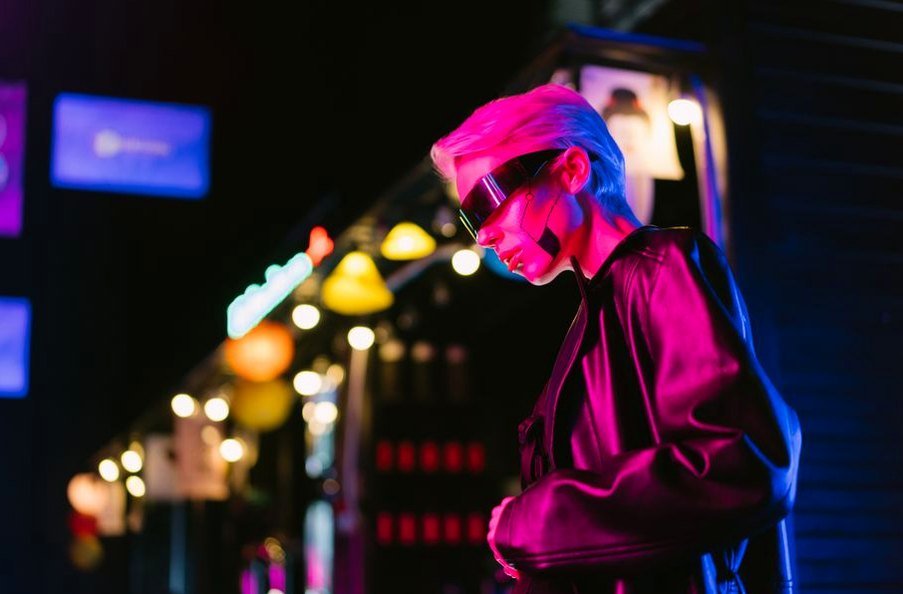
4K Gaming Wallpapers: From Bleak Fantasy Worlds to Neon Cities
Finding a sharp gaming wallpaper starts with three checks: the image must match your screen, the download page must identify the artwork clearly, and the file should come from a page that states its quality. Wallpapers4screen lists free desktop game wallpapers in 3840x2400 resolution, including Fortnite fan art with dark, bright, and colorful visual styles.
A careful workflow prevents wasted downloads and avoids stretching a low-resolution picture across a large monitor. The site organizes game wallpapers across hundreds of pages, so checking the image details before downloading saves time when you want a specific mood, color palette, or character.
Start With the Screen Resolution
Check your monitor settings before choosing an image. A 3840x2400 wallpaper has enough detail for a 4K-class desktop display, while its 16:10 shape may crop differently on a 16:9 monitor.
That shape difference matters. If your display uses 3840x2160, the image may need cropping at the top and bottom. A standard 1920x1080 screen can display the wallpaper clearly after scaling, but some detail may be reduced compared with a native 4K panel.
Open the image preview and compare its proportions with your desktop. This small step prevents the character, face, weapon, or bright center of the artwork from disappearing behind automatic cropping.
Choose the Visual Direction Before Browsing
Color and contrast determine whether a wallpaper feels suitable for daily desktop use. Dark fantasy artwork works well when icons need to remain visible, while saturated neon or blue 3D backgrounds create a more energetic gaming setup.
The catalog includes Fortnite fan art with several distinct treatments. Frozen Raven uses a blue 3D background, Shade appears with yellow tones, Sanctum uses violet, and Dominion is associated with a red background. Those labels make it easier to narrow the search without opening unrelated images.
For a restrained desktop, start with black, gray, or deep blue backgrounds. Spider Knight is listed with a black 3D background, Marshmello with gray, and Shiver with blue. Bright options such as Polarity in yellow or Dusk in violet suit users who want stronger contrast around the screen edges.
Verify the Image Details
Read the full item title before downloading. A title usually identifies the character, game, resolution, background treatment, and whether the artwork is fan art. Each detail helps confirm that the preview matches the file you intend to save.
Check for the stated 3840x2400 dimensions rather than relying on a thumbnail. Thumbnails can look sharp in a browser while losing clarity when expanded across a desktop monitor. The listed dimensions provide a practical quality check before the file reaches your downloads folder.
Use the page label as a second verification stage. The catalog identifies this section as games wallpapers and shows page numbering, including page 1 of 438. If the first page does not contain the style you want, move through the catalog instead of downloading an unrelated substitute.
Use the Catalog Without Losing Track
Open one candidate at a time and record the character name or visual description. This simple habit prevents duplicate downloads when several images use similar blue, violet, or red backgrounds.
The 4K Gaming Wallpapers: From Bleak Fantasy Worlds to Neon Cities category is suited to this comparison because its listings combine game names, character names, resolution details, and background descriptions. You can move from bleak black designs to colorful 3D scenes while keeping the same verification method.
Download only after the preview, title, and dimensions agree. If one of those details conflicts with the others, return to the listing and inspect the image again. This takes less time than setting an unsuitable picture as the desktop background and searching for a replacement later.
Set the Wallpaper Without Losing Composition
After downloading, open the image in your operating system’s preview tool. Check the character position, the brightest areas, and the amount of empty space around the subject before applying it.
Choose a display mode that keeps the artwork proportional. “Fill” may crop edges, while “Fit” can leave unused space on some screens. If the focal point sits near an edge, a mode that preserves the full image may produce a better desktop layout.
Keep a separate folder for downloaded gaming wallpapers and name files with the game and character. Names such as “Fortnite-Frozen-Raven-3840x2400” are easier to find than generic filenames, especially when you collect several similar designs.
Checklist Before Any Payment Prompt
- Confirm that the page identifies the wallpaper as free for desktop download.
- Match the listing to the intended game, character, and visual style.
- Verify the stated 3840x2400 resolution and compare it with your monitor.
- Check that the preview, title, and download details describe the same image.
- Do not enter payment information if a page unexpectedly requests money for the listed free wallpaper.
Once these checks are complete, download the selected image and test its crop on your desktop before replacing your current background.
- Reference: https://wallpapers4screen.com/
Write a comment