Best 4K Flowers Wallpapers Winter Botanical Arrangements with Pine Cones and Evergreen Twigs
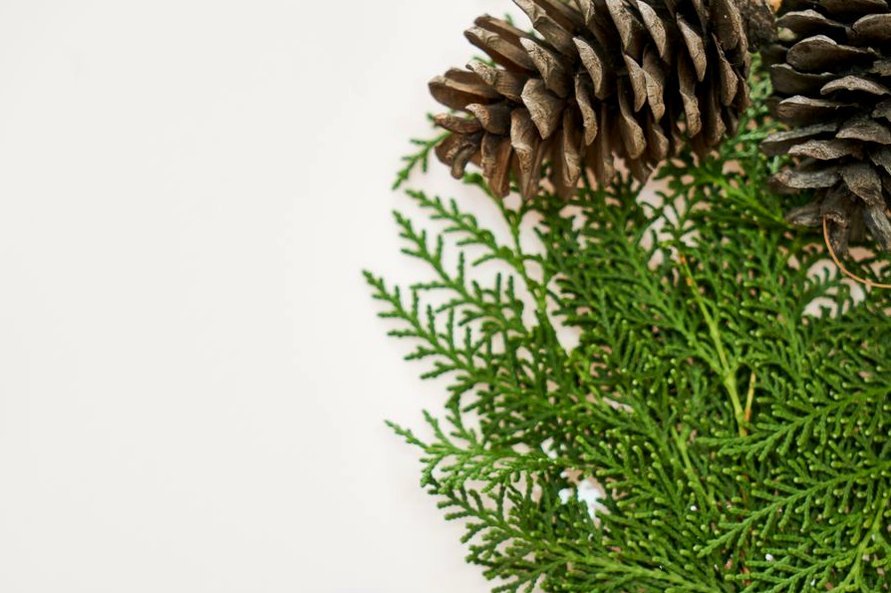
Best 4K Flowers Wallpapers: Winter Botanical Arrangements with Pine Cones and Evergreen Twigs
Start with the right winter composition
A strong 4K flower wallpaper for a winter desktop combines fine botanical detail with enough open space for icons. The flowers should remain the main subject, while pine cones and evergreen twigs provide a seasonal frame without covering the entire image.
The Wallpapers4screen flowers section offers free desktop images in a large 3840x2400 format. That resolution provides plenty of detail for a wide monitor. However, the winter theme still requires a careful preview because the catalog description does not confirm that every image includes pine cones or evergreen branches.
Use the Best 4K Flowers Wallpapers: Winter Botanical Arrangements with Pine Cones and Evergreen Twigs category as your starting point. Before downloading, inspect the individual preview and confirm its season, color balance, and layout. This helps avoid saving a beautiful floral image that does not suit your desktop.
Follow a step-by-step selection workflow
- Check the preview before opening the download
Inspect the full composition at thumbnail size first. A suitable winter arrangement should show the flowers, pine cones, and evergreen twigs clearly enough to remain recognizable after icons and taskbars occupy part of the screen.
Images with a dark mass of greenery across the center can make white text and desktop shortcuts difficult to read. A side-weighted bouquet or an arrangement placed in a lower corner usually leaves more usable space for work folders and applications.
- Confirm the listed resolution
Check that the image is listed at 3840x2400 before downloading. This format provides detailed imagery for compatible displays, but its 16:10 proportions may require cropping on a 16:9 monitor.
Review your display settings and identify the screen ratio first. If the monitor uses a different shape, choose an image with open background space around the main arrangement. Cropping will then remove less of the flowers and seasonal greenery.
- Compare color balance with your desktop
Winter botanical images often pair pale flowers with deep green branches and brown pine cones. The contrast can look crisp, but a very bright arrangement may make dark icons difficult to see. Heavy shadows can hide shortcuts as well.
Preview the image alongside your current icon layout. If many folders sit on the left side of the screen, look for a composition with a lighter or less detailed area there. This quick check is easier than rearranging the desktop after installation.
- Verify that the subject matches the title
Image titles on the flowers page describe specific subjects, including tulip bouquets and bridal rose arrangements. These entries confirm that the page contains floral wallpapers, but they do not establish that every file includes pine cones or evergreen twigs.
Read the individual title and inspect its preview instead of relying on the category name alone. If the file shows tulips, roses, or another bouquet without winter elements, treat it as a general flower wallpaper and continue looking for a closer match.
Download without creating avoidable problems
Choose the free download option shown for the selected desktop image. Confirm that the file begins downloading from the expected wallpaper page rather than from a pop-up advertisement or a separate page requesting unrelated software.
Before opening the file, check its extension and saved location. A normal image download should be easy to identify in your downloads folder. Do not install a browser add-on, media player, or executable file to obtain a floral wallpaper.
The page lists these wallpapers as free, so a payment request requires additional verification. Check the address, close the payment window, and return to the original image page if the download suddenly asks for card details. No price is listed for these wallpapers.
Install and test the image on your screen
After downloading, open the image at full size and inspect its edges. Look for compression marks, unexpected cropping, or important flowers cut off near the frame. A preview may look balanced while the desktop version loses part of the arrangement through automatic fitting.
Apply the image using a display setting that preserves its proportions. Avoid stretch mode when possible because it can distort flower petals, pine cones, and narrow evergreen twigs. If the system offers fill, fit, or center options, compare them briefly and keep the setting that best preserves the arrangement.
Check text visibility, icon placement, and the appearance of fine botanical details. If the branches disappear into a dark background, try a different crop or another preview instead of adjusting every desktop shortcut.
Short checklist before payment
- Confirm that the preview shows the winter elements you want.
- Verify the listed 3840x2400 resolution.
- Check whether your monitor uses a compatible aspect ratio.
- Review the title and image details for an accurate subject match.
- Download only the image file from the expected page.
- Do not enter payment details for a wallpaper marked free.
- Test the crop, icon readability, and image quality before keeping it.
- Reference: https://wallpapers4screen.com/
Write a comment